Bulk Processing (for companies with several locations)
For users who manage companies with multiple locations, Markee has a bulk editing function. This allows you to enter and manage the data and images of several locations simultaneously and uniformly.
To do this, select the relevant company and click on the overview of locations. Here you can either select all locations at the same time or set a check mark for the corresponding locations.
Guide - Bulk Processing in Markee
Bulk Processing for Google Attributes
(Status June 2021)
Requirement for the adjustment of the Google Attributes is the same category for all desired locations. The corresponding category must offer Google attributes. If this is not yet the case, then first change the category via batch editing as described above.
You can then open the batch processing for the Google Attributes. You will find the Google Attributes in the fields to be edited under "Additional information".
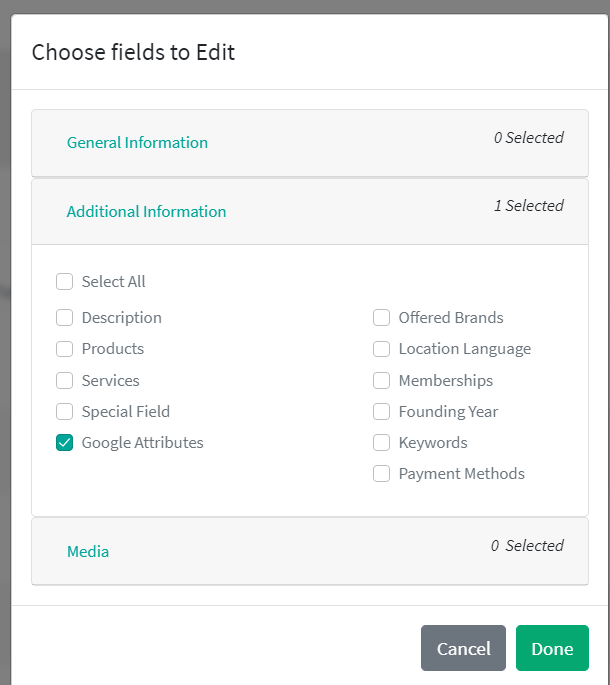 The subsequent window with the "Bulk processing" opens:
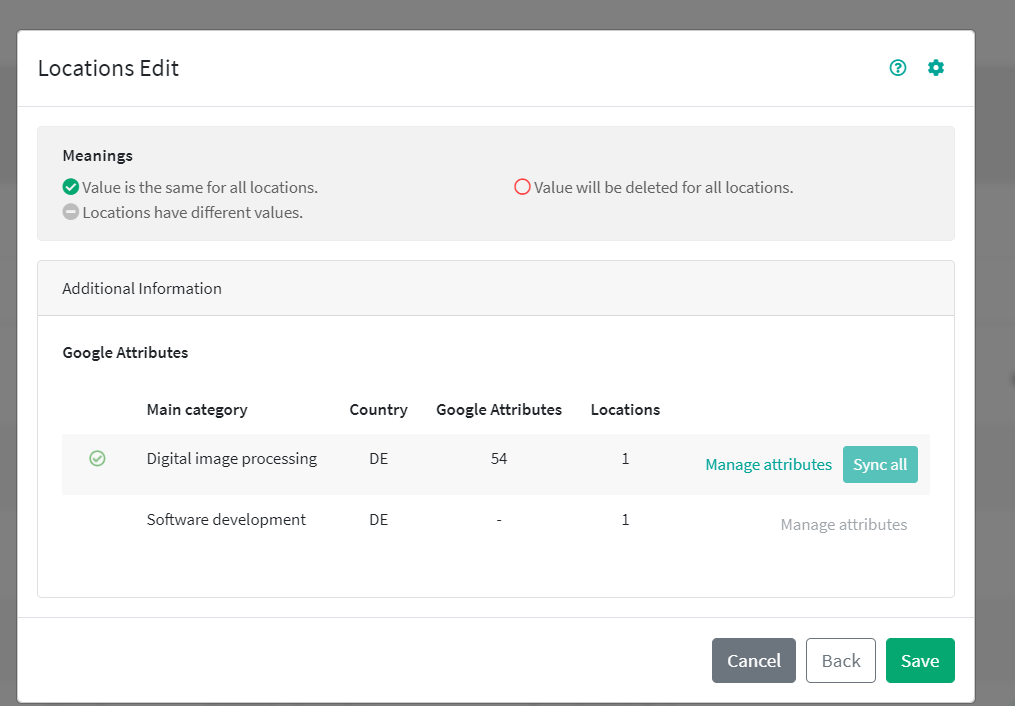 If you click on "Manage attributes", you can view the stored attributes for each location. You can switch between the individual locations at the top right:
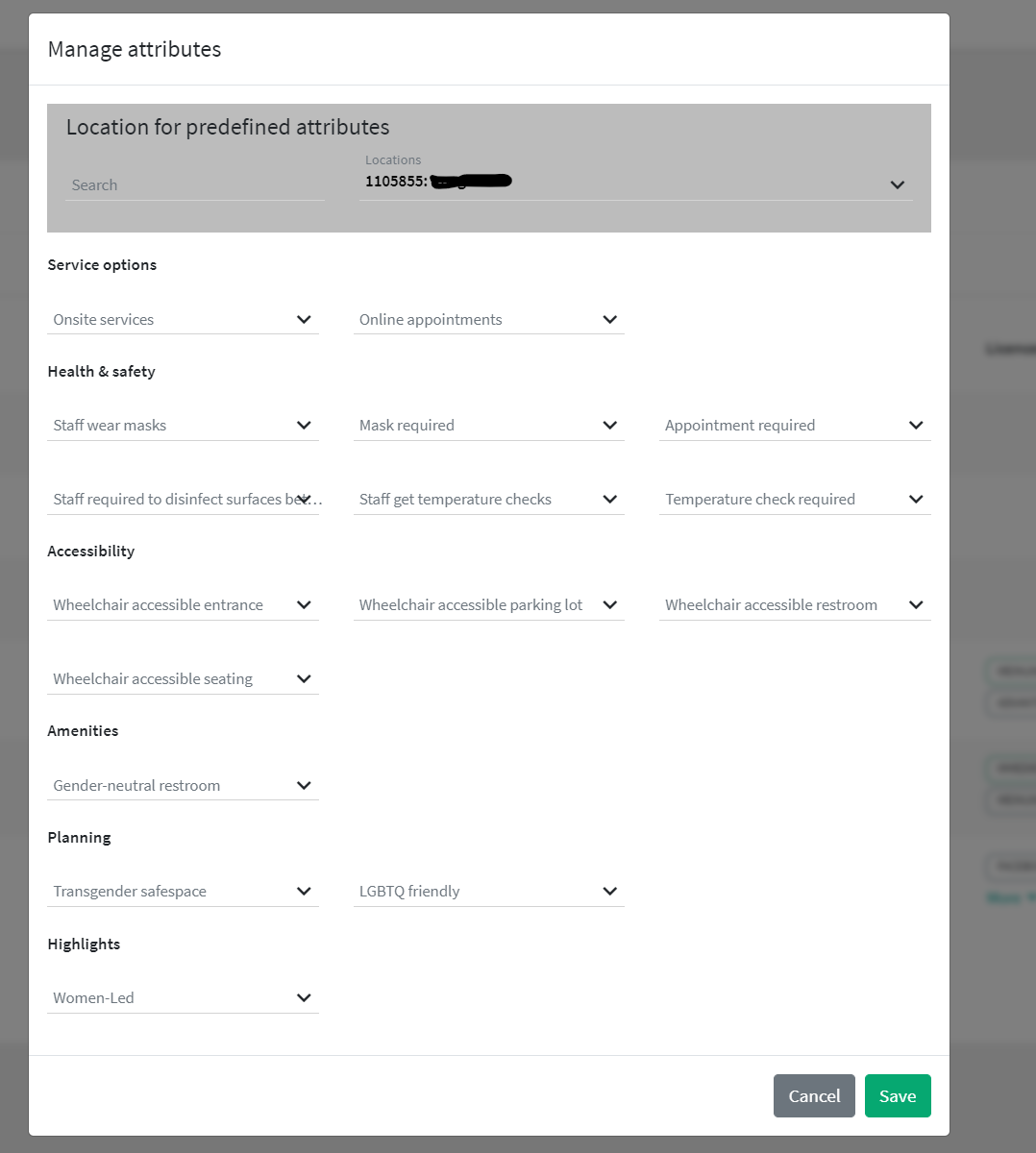
You can select the needed attributes here and save them. Finally, you return to the previous window "bulk processing" and save again.
To Bulk Edit Google Attributes: You can adjust several different types of information in the same step via bulk editing. However, this does not apply to the main category and the Google Attributes in combination. Because the former requires the latter, these two pieces of information must be edited in two separate steps, one after the other.